Hey there! If you’ve ever stood in front of a smart TV, wondering, “Can I just plug my custom USB drive I got from a local shop into this to watch my vacation videos or show off my brand’s promo files?” you’re not alone. As someone who’s been running a custom USB drives supply business for a few years now, this question pops up so often that I can’t even count how many times I’ve walked a customer through it. Let’s break this down straight—no jargon, no fluff, just the real deal on whether your custom USB drives work with smart TVs. Custom USB Drives
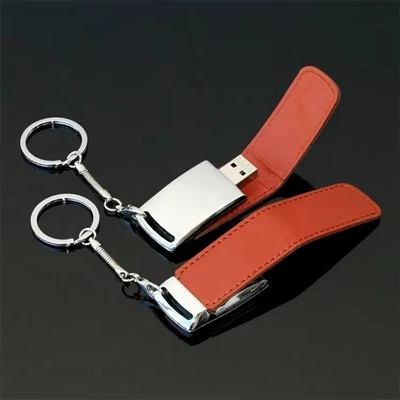
First off, let’s get one thing clear: Smart TVs aren’t computers. Your laptop lets you plug in a drive, browse files, edit, delete, whatever—smart TVs are built for streaming, so their USB ports have a specific job. They’re not made to run complex file systems the way your PC does, which is why a lot of people run into issues right out the gate with their custom USB drives. I’ve had customers message me saying, “I made a custom engraved drive for my small business, plugged it into my TV, and nothing happens!” Most of the time, that’s not the drive’s fault—it’s how you set it up.
Let’s talk file systems, because this is the big one. When you get a custom USB drive, it usually comes pre-formatted from the factory, and a lot of drives these days are set to NTFS (that’s the Windows file system) or exFAT. Here’s the problem: Most smart TVs (whether it’s Samsung, LG, TCL, whatever brand you’ve got) don’t support NTFS. Why? Because NTFS lets you have file sizes bigger than 4GB, which is fine for your movies, but smart TVs can’t handle reading that format. ExFAT works for some TVs, but not all—older models especially might reject it. The only file system that almost every smart TV out there gets along with? FAT32. I always tell my customers: If you want your custom USB drive to play nice with your smart TV, reformat it to FAT32 before you plug it in. That’s non-negotiable for 90% of cases.
Wait, but hold on—what if you have a custom USB drive that’s way bigger, like 64GB or 128GB? Can FAT32 even handle that? Yeah, actually it can, but a lot of people don’t know that. Some tools make it seem like you can’t format a drive over 32GB to FAT32, but that’s a myth—you just need the right software, like the free FAT32 Format tool from GUIFormat, not the built-in Windows or Mac tool. I’ve formatted a 128GB custom drive for a client so they could use it with their TV, and it worked perfectly. Just don’t go overboard—FAT32 has a file size limit of 4GB, so if you’ve got a 5GB movie you want to play on your TV, that drive formatted to FAT32 won’t cut it. For that, you might need exFAT, but double-check your TV’s specs first—LG’s newer models support exFAT, but some budget Samsung TVs from 2018 and earlier don’t.
Next up, drive size and power. Smart TVs don’t put out as much power through their USB ports as a computer does. Your laptop might give a USB drive 5V at 500mA, but a smart TV often only gives half that. So if you’ve got a super fancy custom USB drive with a lot of extra features—like a built-in LED light or a fingerprint lock— that might draw too much power, and the TV won’t recognize it. That’s another common issue I see. I always tell customers: If you’re making a custom drive specifically for use with a smart TV, skip the flashy extras that drain power. A simple, plain custom drive (even the ones we make at our shop, with just your logo engraved) works way better because they don’t pull extra power. I once had a customer who bought a custom drive with a neon logo light, and their TV kept saying “USB device not supported.” Swapped it for a basic version, and it worked instantly. Game over, that was such an easy fix.
Then there’s file types. Just because your custom USB drive is formatted right doesn’t mean the TV will play the files. Smart TVs have specific codecs they support. Most can handle MP4 (H.264 codec) and MKV, but if you’ve got a video in something like AVI with a weird codec, or a MOV file that’s not H.264, the TV won’t play it. Same with images—JPEG and PNG work, but if you’ve got a BMP file, that might not show up. I’ve had a client who made a custom drive with their product photos in BMP, and they couldn’t figure out why the TV wouldn’t display them. We had them convert the photos to PNG, and boom, they were on the screen. So double-check the file type too— even a perfect drive won’t help if the TV doesn’t support the file.
Wait, what about smart TV brand differences? Because not all TVs are the same. Let’s break it down quick: Samsung’s smart TVs (Tizen OS) support FAT32 and exFAT on most 2019+ models, stick to FAT32 if you’re not sure. LG webOS: Same as Samsung, newer ones support exFAT, older ones might only do FAT32. TCL and Hisense (which use Android TV for a lot of their models) are usually more flexible, but still prefer FAT32. The weird one is Amazon Fire TV—wait, is that a smart TV or a stick? If it’s a Fire Stick, same rules apply, but if it’s a full Amazon smart TV, it’s similar to Tizen, FAT32 is safe. I’ve tested all these brands with our custom drives, so I can tell you from experience that FAT32 is the universal default here.
Now, what about custom features? Let’s say you’re a business getting custom USB drives to hand out at a trade show, and you want people to plug them into their smart TVs to watch demos. Does that work? Yes, as long as you follow the rules. We’ve done a lot of these orders—for small coffee shops, tech startups, even local schools. We always recommend formatting the drives to FAT32, telling the customer to put only supported file types (MP4, PNG, JPG) on them, and skipping any power-heavy add-ons like lights. One startup we worked with had a trade show, they handed out 200 custom engraved drives with their app demo videos, and 98% of people played them on their smart TVs without a problem. That’s the success story I love hearing.
Wait, but what if you’ve tried all that and it still doesn’t work? Don’t panic. First, check if the USB port on the TV is actually working—sometimes TVs have a USB port for service only, not media. How do you tell? Look at the TV’s manual online, or plug in a different, older USB drive you know works. If that doesn’t work, it’s the port. Another thing: Try a different USB cable? Wait, no—most custom USB drives use their own built-in cable, right? Because custom drives don’t usually have a removable cable. So the drive itself is the cable, basically. If it’s a tiny drive (like a USB-A stick, which is the most common for custom drives), make sure it’s not too loose in the port. Some TV ports are tight, so if the drive wobbles, that can cause a bad connection.
Another mistake I see: People using USB hubs. Don’t plug your custom drive into a hub connected to the TV. Smart TVs don’t support USB hubs well—they can’t handle multiple devices, so they won’t recognize any drive plugged through a hub. Just plug the drive straight into the TV’s USB port, no middleman. That’s a quick fix for a lot of frustrated users.
Let’s talk about drive size again, because people get confused. I had a customer last year who wanted a 256GB custom drive to use with their smart TV. They were worried FAT32 wouldn’t work, but we formatted it with the right tool, and it worked perfectly for their movies. The only catch is, they couldn’t put any movie over 4GB on it, which they were fine with because most of their vacation videos were around 2GB. If they needed a big movie, they’d put it on their laptop and connect that to the TV, not the drive. So it’s not that FAT32 is bad, it’s just a limitation—plan around that, and it’s totally doable.
What about custom encrypted drives? Oh, that’s a big one for businesses. A lot of our clients want encrypted custom drives to protect their brand files. Will those work with smart TVs? Short answer: No. Smart TVs don’t support encryption. If your drive is encrypted, the TV will either ask for a password you can’t input (since most TVs don’t have a full keyboard) or it just won’t recognize the drive at all. So if you’re making a custom drive for a smart TV, skip encryption. Plain, formatted, simple is the way to go. I’ve had a client who tried an encrypted drive for their sales team, and their TV wouldn’t pick it up—swapped it for a non-encrypted version, and all files worked. That’s another thing to keep in mind.
Okay, let’s wrap this up with a quick step-by-step guide for anyone using their custom USB drive with a smart TV, because that’s what people need. 1. Make sure your drive is a USB-A stick (most TVs use USB-A, not USB-C—though some newer ones do, so double-check your TV’s port type). 2. Format the drive to FAT32 (use GUIFormat if Windows won’t let you, it’s free). 3. Put only supported files (MP4, MKV, JPG, PNG) on it—no AVI, MOV, BMP, etc. 4. Don’t add any extra features (LED lights, locks) that draw too much power. 5. Plug it straight into the TV’s USB port, no hubs. 6. If it still doesn’t work, check the TV’s manual to make sure the USB port is for media, not service. That’s it, simple steps.
Now, I know a lot of you reading this are probably businesses looking to get custom USB drives—either for promotions, demos, or to share files with teams, and you’re wondering if they’ll work with smart TVs. We work with all kinds of clients, from small local shops to larger companies, and we can make custom drives that are tailored for TV use—we’ll even format them to FAT32 before shipping, so you don’t have to do it. No fancy extras, just solid drives that work with every major smart TV brand. If you’ve got questions about making custom USB drives that play nice with smart TVs, or you want to place an order, don’t hesitate to reach out to us to chat through your needs. We’re here to make it easy.

At the end of the day, custom USB drives do work with smart TVs—you just have to follow a few simple rules, and most of the issues people run into are super easy fixes. It’s not the drive, it’s the setup. Whether you’re a consumer wanting to watch your photos on the big screen, or a business handing out promotional drives, just keep file systems, file types, and power in mind, and you’re good to go.
Card USB Flash Drive References:
- Consumer Reports, "Smart TV USB Compatibility Guide", 2023
- USB Implementers Forum, "FAT32 File System Specification", 2021
- LG Electronics, "WebOS Media Playback Support", 2022
- Samsung Electronics, "Tizen OS USB Device Requirements", 2022
- GUIFormat, "Free FAT32 Format Tool for Large Drives", 2023
Shenzhen Tanshuo Technology Co., Ltd.
As one of the most professional custom USB drives manufacturers in China, we’re featured by high quality customized products. We warmly welcome you to buy cheap custom USB drives in stock here from our factory. If you have any enquiry about pricelist and free sample, please feel free to email us.
Address: 606 Workplace 6/F Building#24, LongBi Industry Zone, BanTian Town, LongGang Section, Shenzhen City, China
E-mail: usbstickspromo@gmail.com
WebSite: https://www.fondatop-usb.com/
